
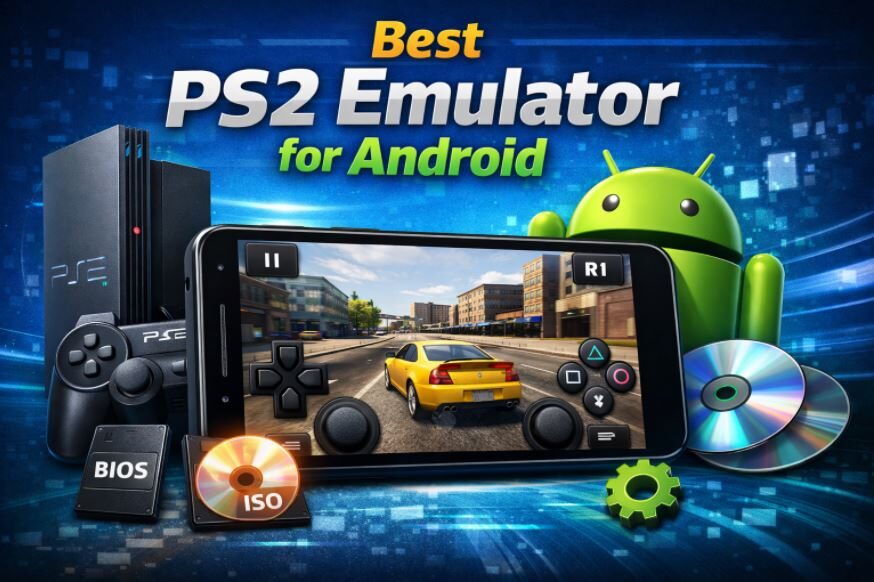
The PlayStation 2 (PS2) holds a special place in gaming history as one of the most successful and beloved consoles of all time. Released by Sony in 2000, the PS2 revolutionized gaming with its extensive library of iconic titles and innovative features. With over 155 million units sold worldwide, it remains a fan-favorite for nostalgic gamers who want to relive classic games like Grand Theft Auto: San Andreas, Final Fantasy X, and Metal Gear Solid 2.
In today’s digital age, mobile gaming has become a dominant force, and many gamers are eager to experience their favorite PS2 titles on their Android devices. This has led to the rise of PS2 emulators—software that allows users to play PlayStation 2 games on smartphones and tablets. Android emulators offer a way for gamers to enjoy the vast PS2 library without needing the original hardware, making it possible to play these classic games on the go.
In this article, we’ll help you navigate the world of PS2 emulators for Android by reviewing the best options available. Whether you’re looking for high-performance emulation or an easy-to-use app, this guide will provide all the information you need to choose the right PS2 emulator for your Android device.
What is a PS2 Emulator?
A PS2 emulator is a software application that allows you to play PlayStation 2 games on devices other than the original PS2 console. It works by mimicking the hardware and software of the PS2 system, enabling you to run PS2 games on platforms like your Android phone or tablet. Simply put, an emulator creates a virtual environment that behaves like a PS2, allowing you to enjoy your favorite PS2 titles without needing the actual console.
How PS2 Emulation Works
Emulators work by replicating the functions of the original gaming system. For PS2 emulation, this involves processing game data, including graphics, sound, and controller input, to make the game run on a non-PS2 device. The emulator uses special programs to interpret PS2-specific data and translate it into a format that Android devices can understand. However, since this process requires a lot of computing power, the quality of emulation can depend on the hardware capabilities of your device.
Also Read: Exploring the World of Pink Pokémon: A Colorful Journey Through the Cutest Creatures
Factors to Consider When Choosing a PS2 Emulator for Android
When selecting a PS2 emulator for your Android device, there are several factors to consider. These will help ensure a smooth and enjoyable gaming experience. Here’s what you need to keep in mind:
1. Compatibility: Which Games Work Well and Why This Matters
One of the most important factors when choosing a PS2 emulator is compatibility. Not all PS2 games are the same, and not all will run perfectly on an emulator. Some games may have graphical glitches, audio problems, or even crash entirely when played on certain emulators. Therefore, it’s essential to choose an emulator that supports a wide range of PS2 games with minimal issues. Look for emulators with high compatibility lists and good user reviews, which can give you insight into how well certain games perform.
2. Performance: How Well the Emulator Runs on Various Android Devices
The performance of a PS2 emulator can vary significantly depending on the Android device you’re using. High-end smartphones with powerful processors and ample RAM will generally run PS2 games more smoothly, while lower-end devices might experience lag or slower gameplay. Emulators with performance optimization features can help improve frame rates and overall gameplay, so make sure to check if the emulator allows you to tweak settings for smoother performance on your device.
3. Controls: Customizable Control Options and How Responsive They Are
Gaming on a mobile device comes with its own set of challenges, especially when it comes to controls. Most PS2 emulators allow you to customize the on-screen buttons to mimic the original PS2 controller layout, while others even support external controllers via Bluetooth. The responsiveness of these controls is critical—delayed or unresponsive buttons can ruin the gaming experience. Choose an emulator that offers customizable controls and allows for a responsive, comfortable gaming experience.
4. User Interface: Ease of Use and Accessibility for Players
The user interface (UI) of the emulator plays a big role in how easy it is to use. A well-designed, intuitive UI ensures that players can navigate the emulator’s settings and features without confusion. It should allow easy access to things like game selection, control settings, and performance adjustments. A clean and simple UI helps new users get started quickly while still offering advanced options for more experienced gamers.
5. Game Library Support: How Many Games are Supported, Including Graphics and Sound
Game library support is another crucial factor. The emulator should support a large number of popular PS2 titles, from well-known classics to niche games. In addition, check whether the emulator can handle graphics and sound as close to the original experience as possible. Some emulators offer enhanced graphics, while others provide an accurate representation of the PS2’s original output. Make sure to choose an emulator that offers high-quality graphics and clear sound for the best gaming experience.
When selecting a PS2 emulator for Android, keeping these factors in mind will help you find one that suits your needs and provides an enjoyable gaming experience. Whether you’re after compatibility, smooth performance, or ease of use, the right emulator can bring your favorite PS2 games to life on your Android device.
Top 5 PS2 Emulators for Android
If you’re looking to enjoy PS2 games on your Android device, choosing the right emulator is essential. In this section, we’ll dive into the top 5 PS2 emulators available for Android, exploring their features, pros, and cons to help you make an informed decision based on your needs.
1. DamonPS2
Features and Highlights
DamonPS2 is one of the most popular PS2 emulators for Android, offering high-speed emulation and excellent compatibility with many PS2 games. It supports a wide range of games, including graphics enhancements and high frame rates for smoother gameplay. DamonPS2 offers both a paid and free version, with the paid version unlocking extra features like better performance and additional game support.
Pros and Cons
Pros:
- Fast and responsive, even on mid-range devices.
- Good compatibility with many popular PS2 games.
- Supports higher frame rates and better graphics on supported devices.
Cons:
- The free version has limited features and ads.
- Some games may still experience issues or crashes.
- Paid version can be quite expensive.
Best for: High-end Android devices that can handle the demands of PS2 emulation, especially those looking for improved performance and enhanced graphics.
2. PCSX2 (Android Port)
Overview of PCSX2 and Its Mobile Port
PCSX2 is a well-known PS2 emulator for PC, and it now has a mobile port available for Android. This emulator brings the full power of the PCSX2 experience to your phone, but it requires a high-performance device to run smoothly. It offers excellent game compatibility and allows you to adjust various settings for optimal gameplay.
Key Features and Performance on Android
PCSX2 offers customizable graphics settings, support for HD resolution, and even save states. However, it’s more demanding on your device’s resources, so users should expect to run it on high-end Android phones for the best performance.
Pros and Cons
Pros:
- High game compatibility and graphics quality.
- Advanced features, including save states and custom settings.
- Offers an authentic PCSX2 experience.
Cons:
- Requires a powerful Android device for smooth performance.
- The mobile version is still in development and may have occasional bugs.
- Not beginner-friendly for those unfamiliar with the PCSX2 interface.
Best for: Advanced users and gamers already familiar with the PCSX2 emulator on PC, especially those using high-performance Android devices.
3. AetherSX2
Detailed Look at AetherSX2
AetherSX2 is a newer and lightweight PS2 emulator for Android that is gaining popularity due to its great performance on a variety of devices, especially mid-range Android phones. The emulator allows for smooth PS2 gameplay with good compatibility for most games, even with lower-end devices.
Features, User Interface, and Game Compatibility
AetherSX2 is designed to be user-friendly, making it easy for beginners and advanced users alike to set up. It offers a simple interface, and it supports gamepad integration, which enhances the overall gaming experience. Game compatibility is generally high, with most popular PS2 titles working well.
Pros and Cons
Pros:
- Lightweight and fast, even on mid-range Android devices.
- Easy-to-use interface and controller support.
- Offers good compatibility for most PS2 games.
Cons:
- Some games may not run as smoothly as on higher-end emulators like DamonPS2.
- Still a developing emulator, so occasional bugs may arise.
Best for: Mid-range Android devices that want a balance between performance and compatibility, offering a good experience without the need for high-end hardware.
4. Play!
Overview of Play! Emulator
Play! is a lightweight PS2 emulator that doesn’t require high-end hardware to run. It’s designed for users who want to enjoy PS2 games with minimal fuss. While it doesn’t offer the same level of performance or game compatibility as other emulators, it’s a great option for casual gamers looking for a simple solution.
Pros and Cons
Pros:
- Very lightweight and easy to use.
- Good compatibility with many classic PS2 games.
- No need for high-end devices to run smoothly.
Cons:
- Lacks advanced features like enhanced graphics or save states.
- Lower game compatibility compared to other emulators.
- Performance may be less stable on lower-end devices.
Best for: Casual gamers who want a simple, no-frills way to enjoy PS2 games without complex setup or performance requirements.
5. RetroArch (with PS2 Core)
Overview of RetroArch and How to Set It Up for PS2 Games
RetroArch is an all-in-one emulator that supports a wide range of gaming consoles, including the PS2. To play PS2 games, you’ll need to use the PS2 core, which works within RetroArch’s extensive platform. RetroArch is a great option for those who want an emulator that can handle multiple systems, not just PS2 games.
Features, Versatility, and Pros and Cons
RetroArch offers cross-platform support, so you can play PS2 games not only on Android but also on other devices. It’s highly customizable and includes options for high-definition gaming and gamepad support. However, the setup can be tricky for beginners due to its complexity.
Pros and Cons
Pros:
- Multi-platform support, ideal for gamers who want to emulate various consoles.
- High customization options for both graphics and controls.
- Active development and community support.
Cons:
- Can be complex to set up, especially for new users.
- PS2 core may not offer the same performance as dedicated PS2 emulators.
- Requires a solid understanding of RetroArch to use effectively.
Best for: Users who want a multi-platform emulator with the flexibility to emulate various systems and are willing to invest time in setting it up.
How to Set Up a PS2 Emulator on Android
Setting up a PS2 emulator on your Android device can be an exciting way to relive classic PlayStation 2 games. In this guide, we will walk you through the step-by-step process of downloading and installing an emulator, setting up the necessary files, and fixing common issues you may encounter. Let’s get started!
Step-by-Step Guide for Downloading and Installing an Emulator
- Choose a PS2 Emulator
Start by selecting a PS2 emulator that suits your device and gaming preferences. Some popular options include DamonPS2, PCSX2 (Android port), and AetherSX2. You can download these emulators directly from the Google Play Store or from their official websites for a more updated version. - Download the Emulator
- From Google Play Store: Search for your chosen emulator, and click Install. Follow the on-screen instructions.
- From a Website: If the emulator isn’t available on the Play Store, visit the developer’s website and download the APK file. Enable “Install from Unknown Sources” in your phone’s settings, then open the downloaded file to install.
- Launch the Emulator
After installation, open the app. Most emulators will guide you through a basic setup process when you launch them for the first time. You may need to grant necessary permissions for the emulator to work correctly.
Tips on Setting Up BIOS Files, Game ISOs, and Configuration Settings
Once the emulator is installed, you’ll need a BIOS file and game ISOs to start playing. Here’s how to set them up:
- BIOS Files
The BIOS is essential for emulating PS2 games. You’ll need to download a copy of the PS2 BIOS file (e.g., SCPH-10000). Be sure to use legitimate sources to avoid any issues with the emulator.- After downloading, move the BIOS file to a folder on your Android device (e.g., /PS2/BIOS/).
- Go to the emulator settings and locate the BIOS folder option. Set the path to the folder where you stored the BIOS file.
- Game ISOs
Next, you’ll need game ISOs (disk image files) to play PS2 games on your emulator. These ISOs are usually available from game disc backups or legal ROMs.- Place your game ISOs in a dedicated folder (e.g., /PS2/Games/).
- In the emulator, navigate to the Game Directory setting and point it to the folder containing your ISOs.
- Configuration Settings
Emulators often have various settings you can adjust to improve performance:- Graphics Settings: Adjust resolution and texture filtering for better visuals.
- Audio Settings: Modify the sound quality to avoid lag or distortion.
- Control Settings: Customize your on-screen controls or set up a Bluetooth gamepad for a more authentic experience.
Troubleshooting Common Issues
While using a PS2 emulator on Android, you may encounter a few common issues. Here are some solutions to help you out:
- Game Lag or Crashing
If you experience game lag or crashes, the emulator might be struggling with your device’s performance.- Solution: Lower the graphics settings (reduce resolution or turn off texture filtering) to improve performance.
- You can also close background apps to free up system resources and boost the emulator’s performance.
- How to Fix Control Issues
Sometimes, controls may not respond well or may feel unresponsive.- Solution: Go to the emulator’s control settings and adjust the button layout. If you’re using a Bluetooth controller, make sure it’s properly connected and that the emulator supports it.
- You can also re-map controls to match your preferences for smoother gameplay.
- Improving Graphics and Sound Performance
Poor graphics or audio performance can detract from your gaming experience.- Solution: Check the emulator’s graphics settings and audio settings. Try using lower graphical settings (such as reducing resolution) to increase frame rates and improve stability.
- For sound issues, try disabling any unnecessary sound options and adjusting the audio latency for better sync with the game.
- Solutions for Device Compatibility Problems
If your device struggles to run the emulator or if you’re encountering error messages, it could be due to hardware limitations.- Solution: Make sure your device meets the minimum system requirements for the emulator. For smoother gameplay, try running the emulator on a device with a higher-end processor and more RAM.
- You can also try installing the latest updates for both your emulator and Android OS to ensure compatibility.
Also Read: The Best Sega Genesis Games of All Time
Conclusion
In summary, setting up a PS2 emulator on Android can be a fun and rewarding experience, giving you access to a library of classic games right on your smartphone or tablet. Whether you choose DamonPS2, PCSX2, AetherSX2, or another emulator, follow the steps to download, install, and configure the emulator for optimal performance. Don’t forget to adjust your settings and troubleshoot common issues as you go.
Final Recommendation: The best emulator for you depends on your device’s specifications and your gaming preferences. High-end devices may benefit from DamonPS2 or PCSX2, while AetherSX2 is great for mid-range phones. For casual gamers, Play! and RetroArch offer a simpler experience.
We encourage you to experiment with different emulators and see which one works best for your setup. Happy gaming!